
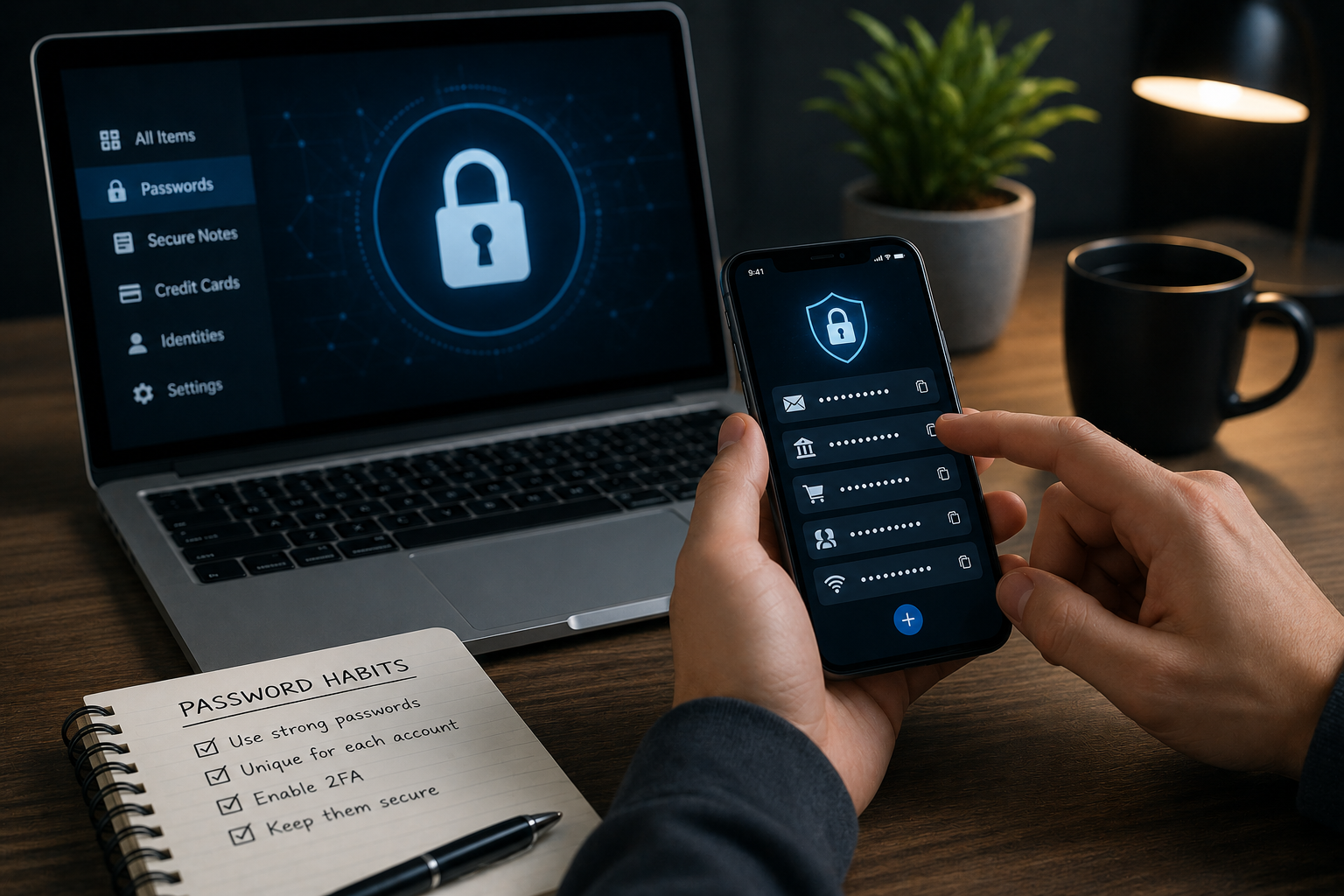
Picture this scenario: a company you have used for years — a retailer, a streaming service, a health app — suffers a data breach. Your email and password are in the leaked data. The attacker takes that combination and, within hours, tries it on Gmail, Outlook, your bank’s website, and 50 other services. This is not hypothetical. According to Huntress research, 46% of internet users had at least one password stolen in 2024. Credential stuffing — the automated process of testing stolen credentials across multiple sites — accounted for 22% of all confirmed data breaches in 2024-2025.
Now imagine that scenario with one difference: your most important accounts have two-factor authentication enabled. The attacker has your correct email and password. They type them in and see: “Enter the verification code sent to your phone.” Without your physical device, they cannot proceed. According to Microsoft, enabling 2FA blocks approximately 96% of bulk phishing attempts and 76% of targeted account attacks. It is one of the highest-impact security improvements available, and setup typically takes under three minutes.
What Two-Factor Authentication Actually Is
Two-factor authentication (2FA), sometimes called multi-factor authentication (MFA), adds a second verification step to the login process beyond just a password. The underlying logic is that a secure login should require two things: something you know (your password) and something you have (your phone, a hardware key) or something you are (your fingerprint or face).
Even if an attacker steals the first factor — your password — they cannot log in without the second factor, which they almost certainly do not have. This single layer of protection transforms a compromised password from a critical vulnerability into a much more limited one.
The Different Types of 2FA — and How They Compare
Not all 2FA implementations offer equal protection. Understanding the differences helps you choose the right option for your most important accounts:
SMS text message codes: After entering your password, the service sends a 6-digit code to your registered phone number. You enter this code to complete login. This is significantly better than no 2FA and protects against most common attacks. Its known weakness is SIM-swapping — a social engineering attack where a criminal convinces a mobile carrier to transfer a victim’s phone number to their device, giving them access to SMS messages. SIM-swapping is relatively rare but has been used in high-profile attacks against cryptocurrency holders and social media accounts.
Authenticator apps (Google Authenticator, Authy, Microsoft Authenticator): These apps generate a new 6-digit code every 30 seconds using a cryptographic algorithm. Because codes are generated on your device and never transmitted over the phone network, they are immune to SIM-swapping. This is the method security professionals recommend for most people’s everyday accounts.
Hardware security keys (YubiKey, Google Titan): Physical USB or NFC devices that you plug in or tap to authenticate. They provide the highest level of protection, are completely phishing-resistant (they verify the domain of the site you are logging into, preventing fake site attacks), and are impossible to intercept remotely. Worth considering for email, financial accounts, and password managers.
Passkeys: A newer standard that uses biometric authentication (fingerprint or face) tied to your specific device to log you in without a traditional password at all. Google, Apple, and Microsoft have been rolling out passkey support across their platforms. When fully implemented, passkeys eliminate the phishing risk associated with passwords entirely.
Where to Enable 2FA — in Order of Priority
Your email account is the single most important account to protect with 2FA. Your email is the recovery mechanism for virtually every other account you own. An attacker who gains access to your email can trigger “forgot my password” resets on your bank, social media, shopping, and other accounts, effectively taking over everything. Protect your email first, before any other account.
After email, work through this priority list: your primary bank and any financial accounts, payment services such as PayPal or Venmo, your primary social media accounts, government services (tax filing portals, social security websites), health portals storing medical records, your password manager if you use one, and work accounts including email and any system containing sensitive company data.
On most services, 2FA is found under account Settings, then Security or Privacy. The typical setup for an authenticator app involves scanning a QR code displayed on screen, entering the first generated code to confirm everything works, and saving a set of backup codes — usually 8 to 10 one-time-use codes — in a safe location in case you ever lose access to your phone.
What 2FA Does Not Protect Against
2FA significantly raises the bar for attackers but is not an absolute shield. Verizon’s 2024 data breach report found that 83% of account takeover attacks that bypassed MFA did so through real-time phishing attacks — sophisticated fake sites that prompt the victim to enter both their password and their 2FA code simultaneously, which the attacker then immediately uses on the real site before the code expires.
This specific attack method works because 2FA codes are time-limited but not site-specific. An authenticator app generates the same code whether you are on the real site or a fake one. Hardware security keys solve this problem — they verify the domain before authenticating — but most people do not use them for everyday accounts.
The practical takeaway is that 2FA dramatically reduces your risk from the most common attacks, but it does not eliminate the need to verify that you are actually on the real website before entering any credentials. Both habits together — using 2FA and checking URLs carefully — provide substantially better protection than either alone.
Setting Up 2FA on the Most Common Services
Gmail / Google: myaccount.google.com → Security → How you sign in to Google → 2-Step Verification. Google also supports passkeys and hardware security keys.
Apple / iCloud: Settings → [your name] → Password & Security → Two-Factor Authentication. Apple uses trusted devices for authentication rather than a separate app.
Facebook / Instagram: Settings → Security → Two-Factor Authentication. Both apps support authenticator apps and hardware keys.
Most banking apps offer 2FA in account security settings, though some default to SMS codes. Contact your bank to ask whether authenticator app support is available if SMS is the only option shown.
Frequently Asked Questions
Q: What if I lose my phone and can’t access my 2FA codes?
A: This is the most common practical concern about 2FA, and it is why saving backup codes is essential during setup. Most services provide 8 to 10 single-use backup codes when you enable 2FA — store these in a safe physical location. If you lose your phone, you can use a backup code to log in and then disable or reassign your 2FA to a new device. Apps like Authy also allow encrypted backups of your 2FA accounts across devices.
Q: Should I use the same authenticator app for everything?
A: Using one authenticator app for everything is convenient and not a significant security risk for most people. Authy has the advantage of encrypted cross-device backup, which addresses the “lost phone” problem. Google Authenticator is simple and widely trusted but until recently lacked backup functionality. Microsoft Authenticator offers both personal and work account management in one app. The most important thing is choosing one and actually enabling 2FA — the specific app matters less than the habit.
Q: Does 2FA slow down my login process significantly?
A: In practice, most people find the added step takes 5 to 10 seconds for familiar accounts. Many services also offer “remember this device for 30 days” options, so you only need the second factor when logging in from a new device or after a set period. The inconvenience is genuinely minimal compared to the protection provided.
